
Google Analytics MCP Server: Step-by-Step Setup for Claude
Connect Claude to your GA4 data with Google's official Analytics MCP server. A step-by-step setup using a read-only service account, no gcloud install required.
Wyatt Johnson
October 16, 2026
In short
- 01 Google publishes an official, read-only MCP server for GA4. It lets Claude run reports, funnels and realtime queries against your properties.
- 02 A service account with Viewer access is the simplest way to authenticate. It skips the gcloud install and only sees the properties you add it to.
- 03 Setup takes about 20 minutes: a Google Cloud project, two APIs, one service account, one GA4 permission and a few lines of config.
- 04 On Windows, use forward slashes or doubled backslashes in the config file. A single backslash breaks the JSON.
Google’s Google Analytics MCP server connects Claude directly to your GA4 data. Once it is running, you can ask “which channels drove sessions last month” or “what changed in organic traffic week over week” and Claude queries the Analytics Data API instead of you exporting a report.
The official README walks through setup with the gcloud command line tool and Gemini. This guide takes a shorter route that suits marketing teams: a read-only service account, no gcloud install, and Claude Desktop or Claude Code as the client. We tested every step below on a live GA4 property in October 2026.
If you have already set up our Google Search Console MCP server, the flow will feel familiar.
What you need
- A Google account with Administrator access to the GA4 property you want to connect (you need it to grant access in step 5)
- Python 3.10 or newer
- Claude Desktop or Claude Code
- About 20 minutes
What the server can do
The server is read-only. It uses the analytics.readonly scope, so it can read reports and settings but cannot change anything in GA4. Version 0.7.0 exposes nine tools:
| Tool | What it does |
|---|---|
get_account_summaries | Lists the GA4 accounts and properties the credentials can see |
get_property_details | Returns settings for one property, such as time zone and currency |
list_google_ads_links | Lists Google Ads accounts linked to a property |
list_property_annotations | Returns the date notes your team left in GA4, such as launches and campaign changes |
get_custom_dimensions_and_metrics | Lists a property’s custom dimensions and metrics |
run_report | Runs a standard report: any dimensions, metrics, date ranges and filters |
run_funnel_report | Runs a funnel report across defined steps |
run_realtime_report | Shows activity from the last 30 minutes |
run_conversions_report | Reports on conversions, ad cost and ROAS with a chosen attribution model |
Every query draws from your property’s normal Data API quotas. For standard properties that is 40,000 tokens per hour, which is plenty for conversational use.
Step 1: Create a Google Cloud project
Go to the Google Cloud Console and create a new project. Give it a clear name, such as “GA4 MCP”. The project ID is generated from the name. Write it down, because you will need it in step 6.
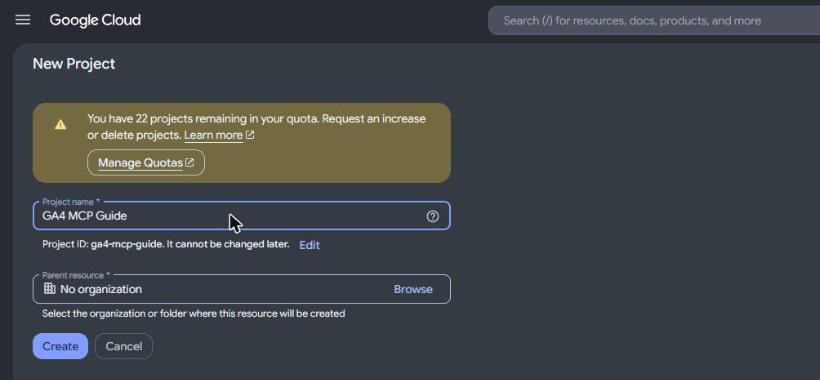
If you already use a project for other Google API work, such as the Search Console MCP server, you can reuse it instead.
Step 2: Enable the two Analytics APIs
The server needs two APIs switched on in your project:
- Open the Google Analytics Data API page and click Enable.
- Open the Google Analytics Admin API page and click Enable.
Check that the project picker at the top of the page shows the project you just created before clicking.
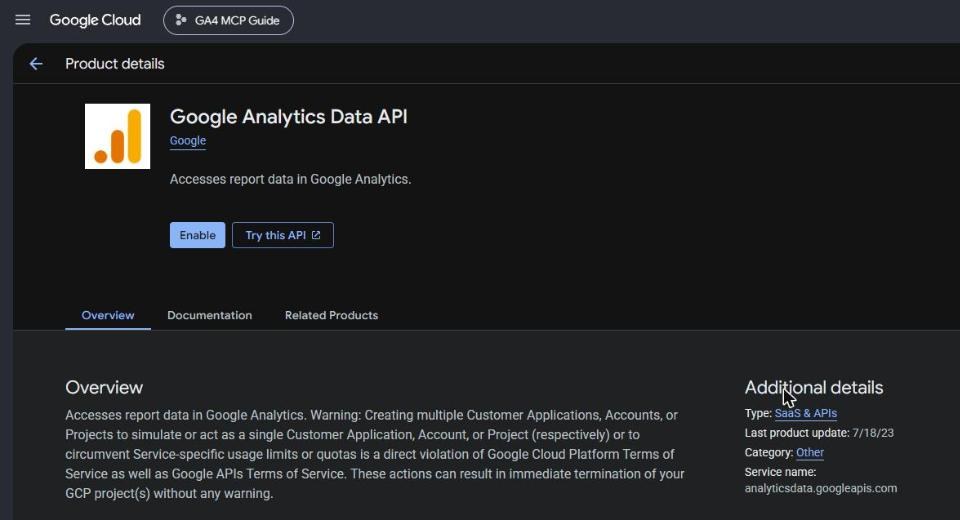
The Data API runs the reports. The Admin API lists your accounts and properties. Without both, some tools will fail with a permission error.
Step 3: Create a service account
A service account is a non-human Google identity. Claude will use it to read GA4, so you never share your own login with the server.
In the Cloud Console, go to IAM & Admin > Service Accounts > Create service account. Give it a name such as ga4-mcp-reader and a short description. Click Create and close. Skip the optional Permissions step: the account needs no Google Cloud roles, only GA4 access, which you grant in step 5.
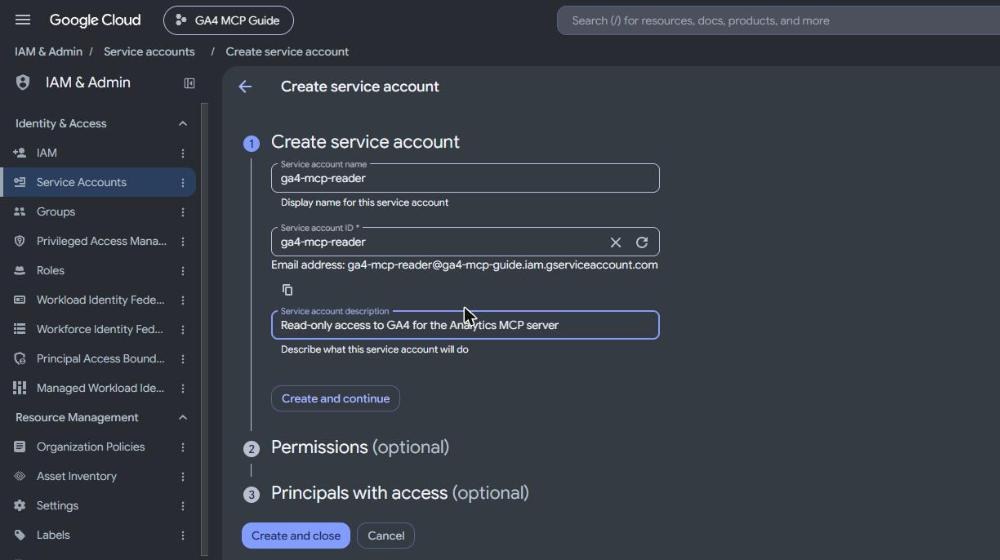
Copy the email address shown under the ID field. It looks like ga4-mcp-reader@your-project-id.iam.gserviceaccount.com.
Step 4: Download a JSON key
Open the service account you just created and go to the Keys tab. Click Add key > Create new key, choose JSON, and click Create. Your browser downloads a .json file.
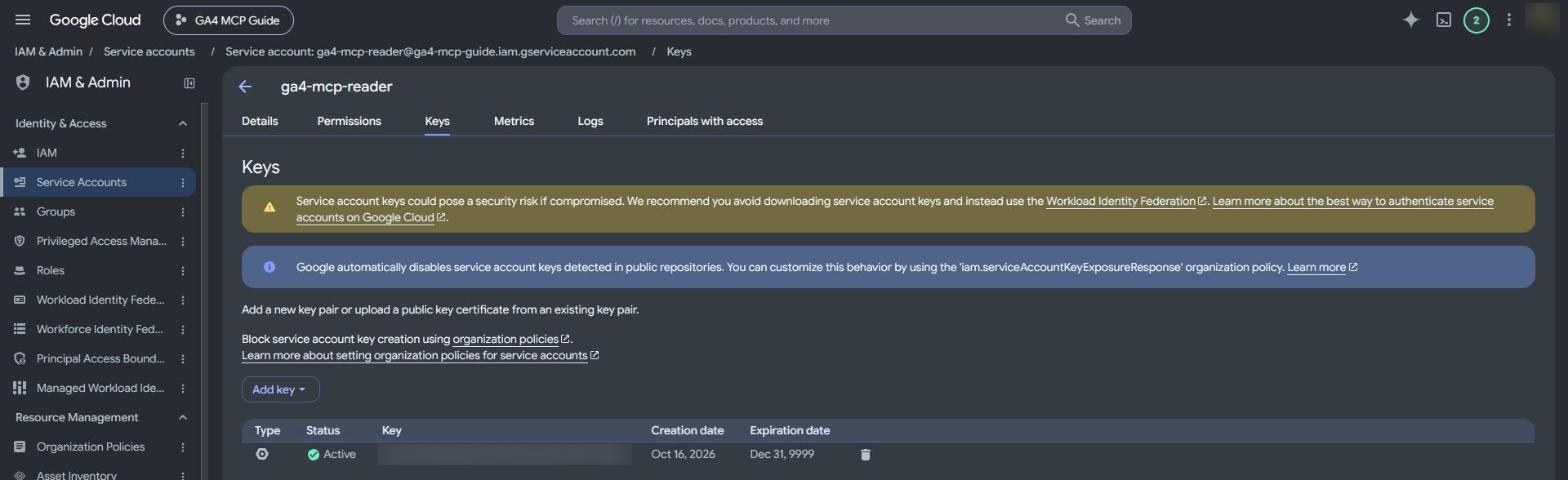
Treat that file like a password:
- Move it out of your Downloads folder to a private location, for example
~/.ga4-mcp/ga4-mcp-reader.jsonon Mac orC:\Users\you\.ga4-mcp\ga4-mcp-reader.jsonon Windows. - Never put it inside a git repository or a shared drive. Google automatically disables keys it finds in public repositories.
- If it ever leaks, delete the key on this tab and create a new one.
If your company’s Google Workspace blocks key creation (some organisations set a policy that does), use the gcloud sign-in route described in the official README instead and skip to step 6.
Step 5: Give the service account Viewer access in GA4
This is the step people miss. A service account can only see GA4 properties it has been explicitly added to, the same as a person.
In Google Analytics, select your property and go to Admin > Property access management. Click the blue + button, then Add users.
Paste the service account email from step 3. Choose the Viewer role, which can read reports and settings but change nothing. Untick Notify new users by email, since a service account has no inbox. Click Add.
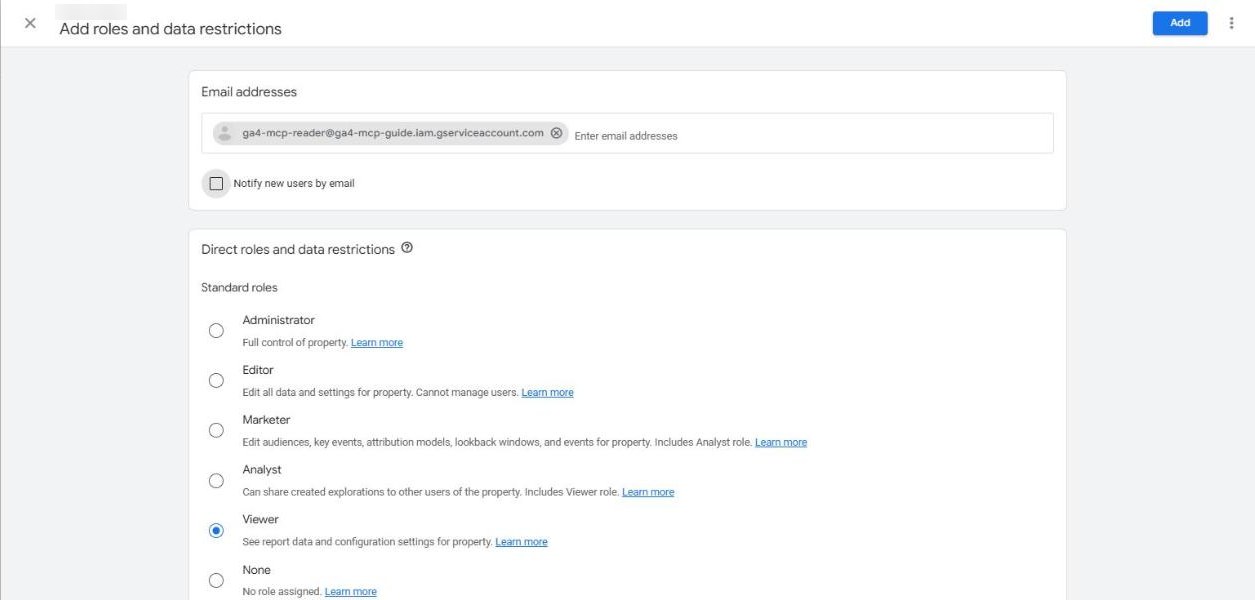
The service account now appears in the access list with the Viewer role.

Repeat this for every property you want Claude to read. Agencies can add the same service account to each client property, or grant it at the account level to cover every property underneath.
Step 6: Install the server
Install pipx if you do not have it, then install the server:
python -m pip install --user pipx
python -m pipx install analytics-mcp
pipx prints where it put the program. It is usually:
- Mac or Linux:
~/.local/bin/analytics-mcp - Windows:
C:\Users\you\.local\bin\analytics-mcp.exe
Note that full path. The README’s example runs the server with pipx run analytics-mcp, which works when pipx is on your PATH. Pointing Claude at the installed program’s full path is more reliable, because Claude Desktop does not always launch with the same PATH as your terminal.
Step 7: Connect it to Claude Desktop
In Claude Desktop, open Settings > Developer > Local MCP servers > Edit Config. This opens claude_desktop_config.json. Add the server inside mcpServers, using the full paths from steps 4 and 6 and your project ID from step 1:
{
  "mcpServers": {
    "analytics-mcp": {
      "command": "/Users/you/.local/bin/analytics-mcp",
      "args": [],
      "env": {
        "GOOGLE_APPLICATION_CREDENTIALS": "/Users/you/.ga4-mcp/ga4-mcp-reader.json",
        "GOOGLE_PROJECT_ID": "your-project-id"
      }
    }
  }
}
On Windows, write the paths with forward slashes, like C:/Users/you/.local/bin/analytics-mcp.exe, or double every backslash. A single backslash is not valid JSON, and Claude will refuse to load the file.
If you already have other servers in the file, such as gsc, add analytics-mcp alongside them inside the same mcpServers block.
Fully quit Claude Desktop and reopen it. Closing the window is not enough. Back in Local MCP servers, analytics-mcp should show as running.
Using Claude Code instead
Claude Code needs one command. Replace the paths and project ID with your own:
claude mcp add analytics-mcp --scope user -e GOOGLE_APPLICATION_CREDENTIALS=/Users/you/.ga4-mcp/ga4-mcp-reader.json -e GOOGLE_PROJECT_ID=your-project-id -- /Users/you/.local/bin/analytics-mcp--scope user makes the server available in every project. Run claude mcp list to confirm it connects.
Step 8: Test it
Start a new conversation and ask:
List the Google Analytics accounts and properties you can access.Claude should call get_account_summaries and return the properties you added the service account to in step 5, and nothing else. That is a quick check that both the key and the GA4 permission are working.
Then try a real question:
For property [name], show sessions by default channel group for the last 28 days, sorted by sessions. Then tell me which channel changed most versus the previous 28 days.Troubleshooting
PERMISSION_DENIED or “User does not have sufficient permissions.” The service account has not been added to that GA4 property. Repeat step 5 for that property.
“API has not been used in project” or “is disabled.” One of the two APIs is not enabled, or it is enabled in a different project. Check step 2 with the right project selected.
The account list comes back empty. Same cause as above: the key works, but the service account has no GA4 access yet. GA4 permissions can take a few minutes to apply.
Claude Desktop does not show the server. Check that the config file is valid JSON (Windows backslashes are the usual cause), that the paths are absolute, and that you fully quit and reopened the app. Local servers appear under Developer > Local MCP servers, not under Connectors, which only lists remote servers.
“Could not automatically determine credentials.” The GOOGLE_APPLICATION_CREDENTIALS path is wrong or the file moved. Use the full path to the JSON key.
What to ask it
A few starting points once it is connected:
- “What were my top 10 landing pages by sessions last month, and how did each change versus the month before?”
- “Show organic search sessions by week for the last 90 days. Flag any week that dropped more than 15%.”
- “Which source and medium combinations drove the most key events this quarter?”
- “List the annotations on this property for the last six months, then check whether traffic changed around each one.”
- “How many people are on the site right now, and which pages are they on?”
Pair it with the Search Console MCP server and Claude can check both sides of an organic traffic change in one conversation: whether rankings and clicks moved in Search Console, and what those visitors did once they landed.
Where this goes next
Asking questions in a chat is useful on its own. The bigger change is what happens when the same connection runs on a schedule. We wrote about that in Looker Studio (now Data Studio) vs Claude for marketing reporting: dashboards show the numbers, and a Claude reporting system reads them and writes down what changed.
If you want that built around your own GA4, Search Console and ad data, our Reporting Systems practice starts with the reports you already send and the questions they need to answer.