
Google Search Console MCP Server: Setup Guide for Claude
A free, open source MCP server that connects Claude directly to your Google Search Console data. Here's how to set it up and what you can do with it once it's running.
Wyatt Johnson
August 8, 2026
Key highlights
- The Google Search Console MCP server connects Claude directly to your search analytics, sitemaps, and URL inspection data, no copy and pasting required.
- It supports both OAuth (your own Google login) and service account auth, and works with Claude Desktop, Claude Code, or any other MCP client.
- It's free, open source, and takes about ten minutes to set up.
We covered MCPs for SEO a few months back and pointed to “community integrations” for Google Search Console. Since then we built our own. It’s free, open source, and connects Claude directly to your Search Console data: clicks, impressions, CTR, position, sitemaps, and URL inspection, all queryable in a normal conversation.
This post walks through what it does and how to set it up.
What it does
The server exposes seven tools to Claude:
| Tool | What it does |
|---|---|
list_sites | Lists every property your account can access |
query_search_analytics | Clicks, impressions, CTR, and position, grouped by query, page, country, device, or date |
list_sitemaps | Lists submitted sitemaps for a property |
get_sitemap | Status and details for one sitemap |
submit_sitemap | Submits a new sitemap |
delete_sitemap | Removes a sitemap |
inspect_url | Runs the URL Inspection tool: indexing status, coverage issues, mobile usability |
Once it’s connected, you can ask things like “what are my top 20 queries for the last 28 days” or “is this URL indexed” and Claude pulls the live answer instead of you logging into Search Console, exporting a CSV, and pasting it into the chat.
Get it
The code, full setup instructions, and license (MIT) are on GitHub: google-search-console-mcp-server. It’s built in TypeScript, runs locally on your machine, and works with Claude Desktop, Claude Code, or any other MCP-compatible client.
Setup
You’ll need a Google account with owner or full user access to the site in Search Console, and about ten minutes.
1. Create a Google Cloud project and enable the API
Go to the Google Cloud Console, create a new project, then open APIs & Services > Library, search “Google Search Console API,” and enable it.
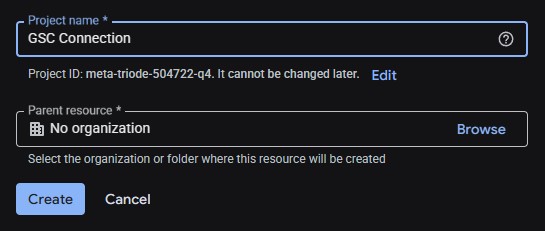
2. Set up OAuth
This is the part that trips people up because the Cloud Console’s naming has shifted around. Here’s what it actually looks like right now.
Go to APIs & Services > OAuth consent screen (shown as Google Auth Platform > Branding in the current console). Fill in an app name and your email, then step through Audience, Contact Information, and Finish.
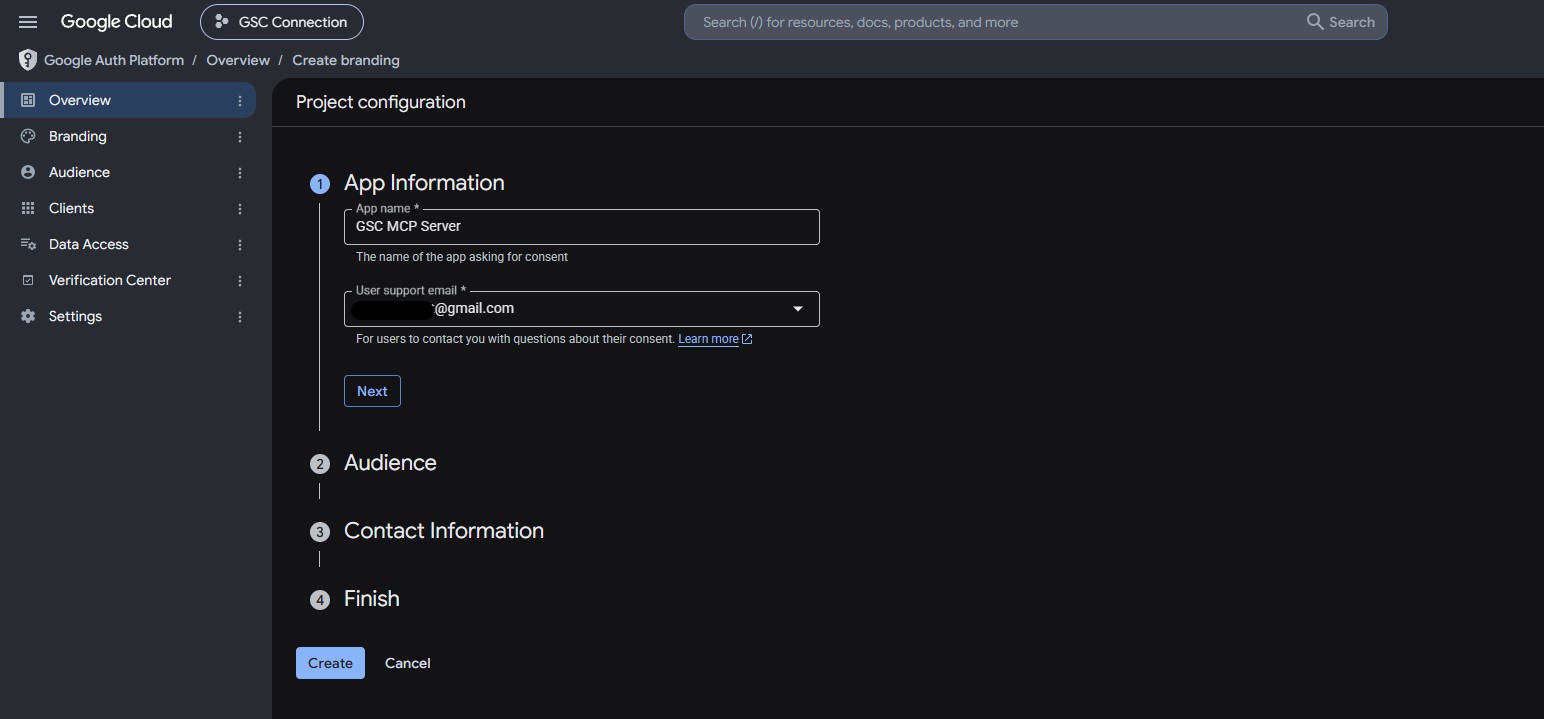
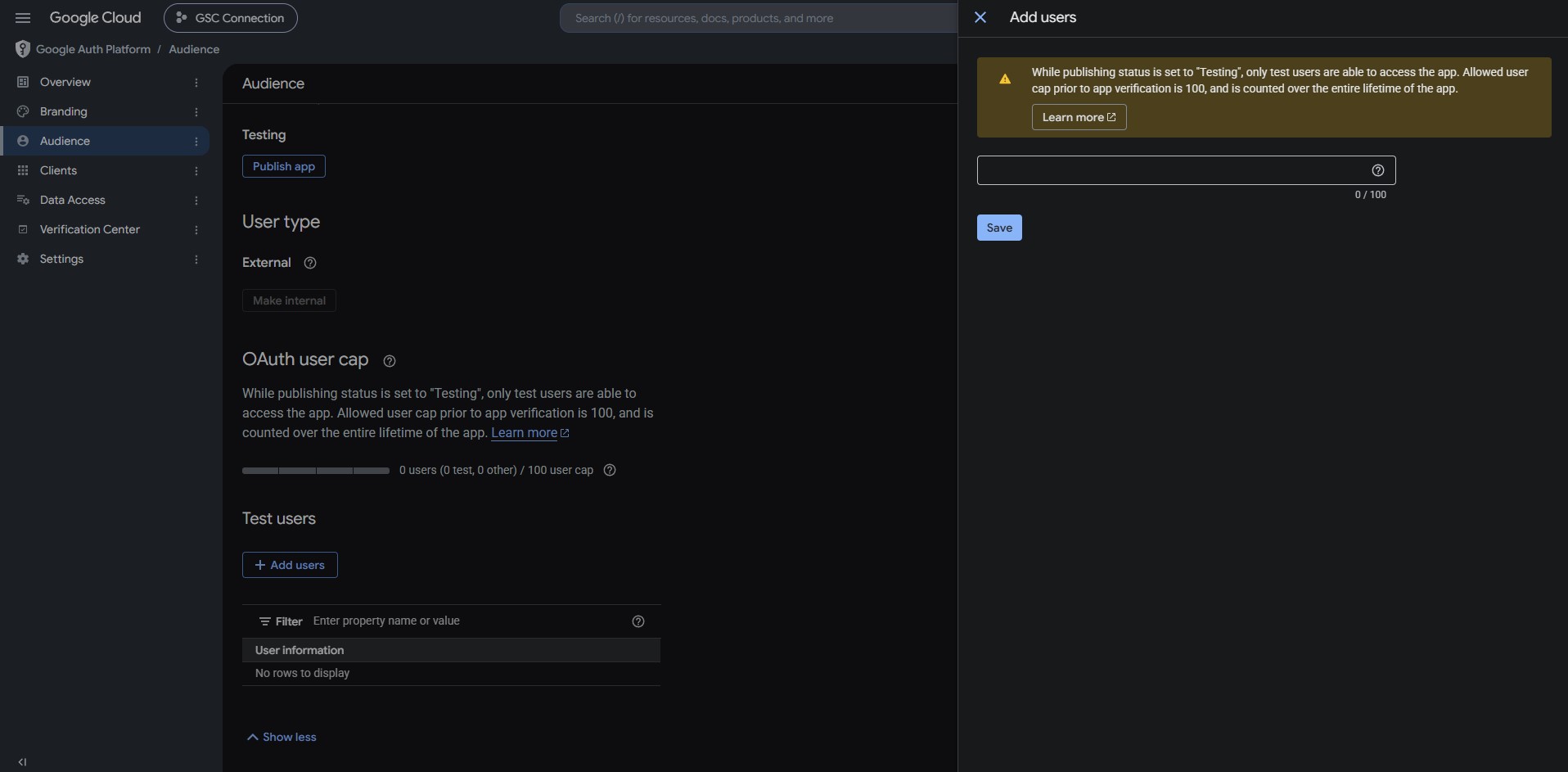
On the Audience page, add your own Google account under Test users. The app stays in “Testing” status, which is fine indefinitely for personal use, but only test users can log in while it’s in that state.
Then go to Clients > Create client. Set the application type to Web application, not Desktop. This matters: the local login flow this server uses needs a fixed redirect URI, and only the Web application type lets you set one. Add this exact redirect URI:
http://localhost:53682/oauth2callback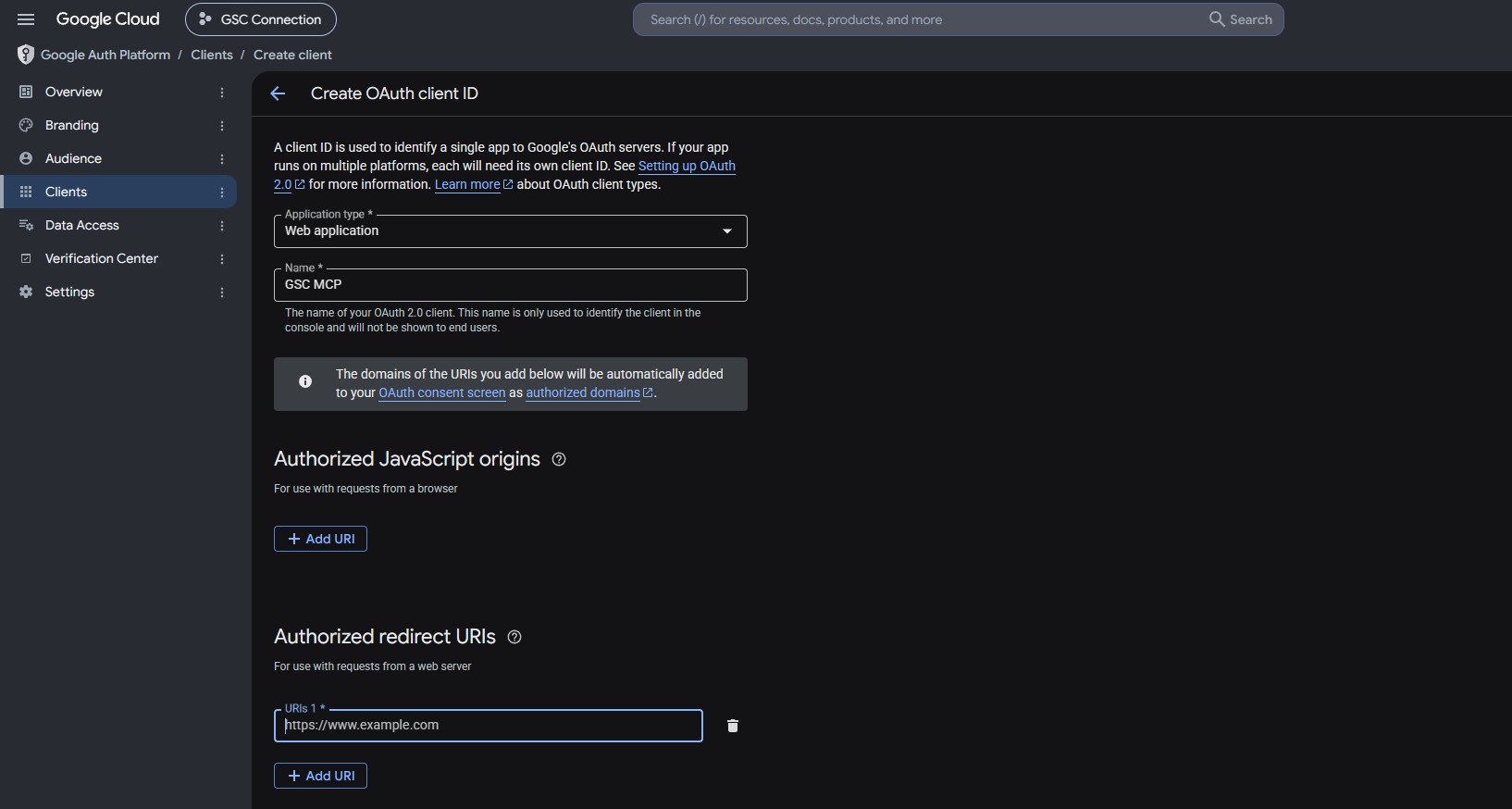
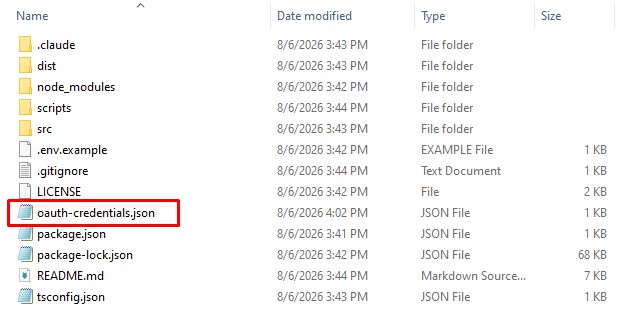
Download the client JSON and save it into the project folder as oauth-credentials.json.
3. Install and authorize
git clone https://github.com/wyattxmgmt/google-search-console-mcp-server.git
cd google-search-console-mcp-server
npm install
npm run build
npm run auth
That last command prints a URL. Open it, log in with the account you added as a test user, and approve access. It saves a token locally and you won’t need to repeat this step.
One detail worth knowing up front: use absolute paths in your .env file, not relative ones. Relative paths resolve against whatever directory the process is launched from, and that’s different depending on whether you’re running it yourself or an app like Claude Desktop is spawning it for you. Absolute paths avoid an annoying, hard-to-diagnose “no credentials found” error later.
GEO audit
Want your GEO tracking set up the same way?
We build the same kind of direct data connections for LLM visibility tracking, so you're not stitching together exports by hand.
4. Connect it to Claude Desktop
This is the other non-obvious part. Claude Desktop’s Connectors panel (under Settings) only accepts remote MCP servers reachable over HTTPS. A locally running server like this one won’t show up there, and it’s easy to assume the setup failed when really you’re just in the wrong menu.
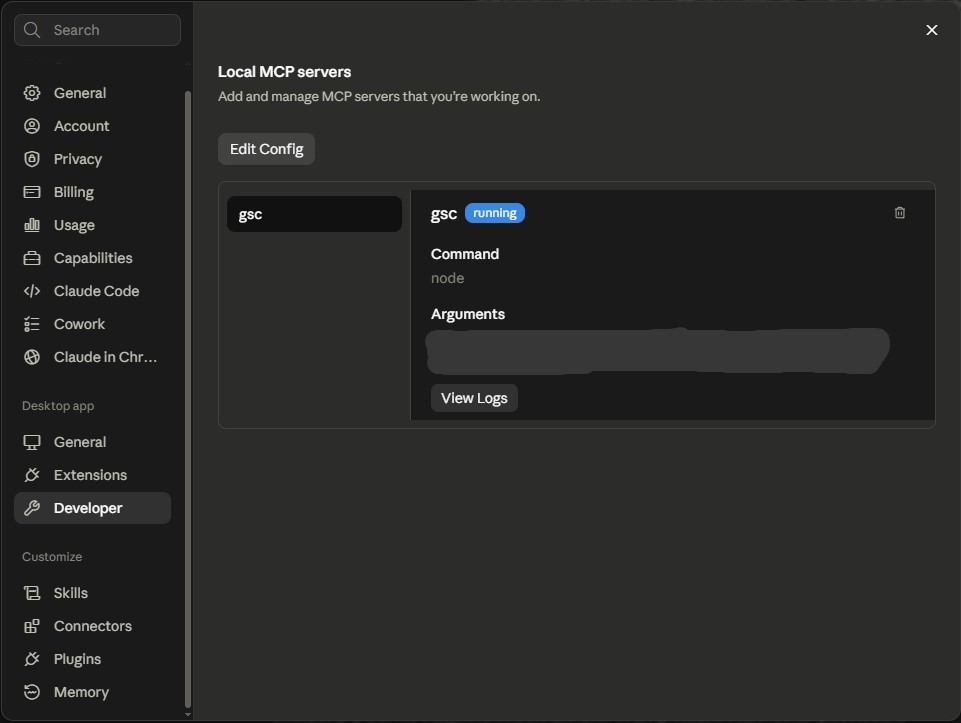
The right place is Settings > Developer > Local MCP servers > Edit Config, which opens claude_desktop_config.json directly. Add the server there:
{
  "mcpServers": {
    "gsc": {
      "command": "node",
      "args": [
        "--env-file=/absolute/path/to/google-search-console-mcp-server/.env",
        "/absolute/path/to/google-search-console-mcp-server/dist/index.js"
      ]
    }
  }
}
Fully quit Claude Desktop (not just close the window) and reopen it. Back in Local MCP servers, you should see it running.
The full README also covers the service account option (no browser login, better if you’re running this on a server) and Claude Code setup.
What to actually ask it
Once it’s connected, a few starting points:
- “List my Search Console properties”
- “What are my top 20 queries for [site] over the last 28 days?”
- “What queries are driving clicks to [specific page], and what’s the CTR on each?”
- “Compare clicks by device for [site] in July vs June”
- “Is [URL] indexed? Run a URL inspection.”
Because query_search_analytics supports filtering by page or query, you can get query-level data for one specific URL instead of pulling the whole property and filtering it yourself afterward.
Why this matters beyond convenience
The bigger point isn’t that this saves you a few CSV exports, though it does. It’s that Claude can now reason over your actual performance data inside the same conversation where you’re doing the rest of the work: drafting content, planning a page, checking how a competitor ranks. The data and the analysis stop being two separate steps.
That’s the same shift we’ve written about with MCPs more broadly: connecting Claude directly to the systems where your data lives, instead of moving it there by hand.
If you want help building that kind of setup around your own SEO and GEO tracking, get in touch.
GEO tools
See exactly how AI is covering your brand
We track how your brand appears across ChatGPT, Perplexity, Claude, and more — and build the strategy to improve it.